
3.2.6 Analysis

When clicking the "Top Toolbar -> Printability Analysis" button, the "Printability Analysis" function panel will automatically pop up on the left side. As a core pre-processing step for data slicing, it is highly recommended that models undergo this analysis before the slicing process is initiated. This approach not only reduces the workload of manual review but also effectively lowers the risk of printing failures and molding anomalies.
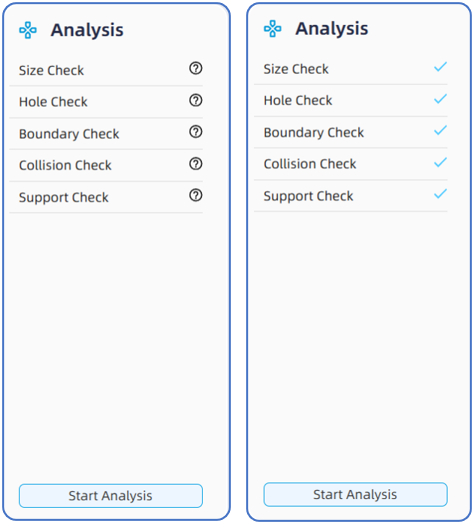
The Analysis panel consists of five primary check items: Size Check, Hole Check, Boundary Check, Collision Check, and Support Check.
1. Size Check: Primarily used to verify whether the model to be sliced falls within the allowable upper and lower size thresholds. The software sets the default lower threshold for a model's single-side dimension at 0.1 mm, and the upper threshold as the length × width of the currently selected build platform. The system will trigger an information prompt during both the importing process and the analysis to prevent printing quality issues or usability failures resulting from models with incorrect size. In such cases, the user must re-export the file or switch to a larger build platform that matches the actual printer model.
2. Hole Check: Designed to identify mesh holes, overlapping facets, and intersecting facets within the model geometry itself. If the software has explicitly prompted a repair warning upon file import but the user skipped the auto-reconstruction or hole-filling fixes, this error prompt will be triggered during the analysis phase. Users must then return to the part editing interface to execute mesh repair operations, and they may subsequently need to regenerate the supports.
3. Boundary Check: Used to detect whether the placement of the model extends beyond the X-Y boundaries of the build platform. Any model within the platform that exceeds the boundaries will be highlighted in red. Manual adjustments are required until the model (along with its supports) no longer displays the red highlight.
4. Collision Check: Used to identify instances where models intersect or collide with one another in 3D space. Models within the platform that collide (including intersecting support rafts) will be highlighted in red. Users need to reposition the models until all models and support rafts are cleared of the red highlight.
5. Support Check: Primarily used to identify cases where overhang points lack support or critical overhang supports have been manually deleted. If this issue is present, and users must regenerate supports or manually add supplementary supports to the overhang points. Note that if a technical user determines that a specific overhang point genuinely does not require support, they may delete it; the analysis will still log an error, but it will allow the user to proceed with slicing, and a confirmation pop-up will appear during the subsequent slicing process.